Help Center · Getting organized
From Shoebox to Sale-Ready
1:45 · captions are built into the video · narrated by Hannah
From Shoebox to Sale-Ready
Thinking about selling your business? Buyers pay for records they can trust. If your history lives in camera rolls, notebooks and shoeboxes, Service Biz Pro turns it into one clean record: every customer, every job's photos and a full payment history.
Match Years of Photos to Customers by GPS (0:12)
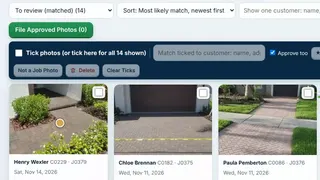
- In the office hub, open Photos. Photo Match lists every photo you've uploaded from old phone backups, camera rolls, Google Photos exports and scanned prints.
- Photo Match reads where each photo was taken and matches it by GPS to your customer's address, even photos from ten or fifteen years ago. Under each photo you'll see the suggested customer and how far the photo was taken from their address, such as 16 m from photo.
- Choose Not matched to a customer and Sort: Oldest photo to work through your oldest photos first.
Approve a Whole Page at Once (0:27)
One company matched fifteen years of customers to more than 8,000 photos this way. 1. Tick the box at the top to select every photo on the page, then tap Use Best Suggestion. With Approve too ticked, each photo is matched and approved in one step. 2. Tap File Approved Photos. The photos are copied into each customer's job folder, and the first before and after photos are linked on the job.
Photos Tagged for Search (0:41)
Every photo is tagged with the city, the service and the surface. In SEO & Listings > Job Check-Ins, finished jobs become a website page, a Google post and a social caption, ready for your approval.
A Page and a Thank-You Card for Every Customer (0:52)
- It works for every customer you've ever had. In the crew app, open any customer to see their jobs, lifetime total and Before & After Photos.
- Tap Customer Page to see the page made for that customer, or Text or Copy Their Page Link to share it.
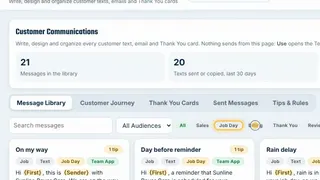
- Tap Send Thank You Card and choose Before & After. The card shows the before and after shots, care tips, a review button and your referral offer. Nothing is sent until you press send in Messages.
Scan Old Paper Invoices (1:13)
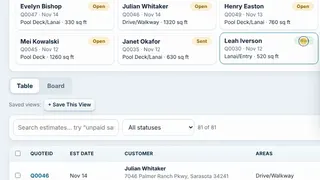
- In the crew app, tap Add Estimate, then Scan a paper estimate or invoice, and take or choose a photo of the invoice.
- AI reads the customer, address, areas, square feet, price, payment method and check number. Check every field; a blank is better than a guess.
- Choose Completed Job (Paid) and tap Save. The customer is matched or created, the job is saved as paid, and the invoice photo is linked on the job.
Scan Lead Sheets (1:27)
- Tap Add Lead, then Scan a lead sheet, and photograph the page.
- Each row becomes a lead with its name, phone, address and what they asked for. Check the fields and save.
Why It Matters (1:32)
A clean customer list, photos for every job and a full payment history are what buyers, lenders and your accountant ask for. When you're ready to sell, the Sell-Ready plan shows buyers numbers pulled straight from these records.
More Tutorials